
DXF, SVG or PDF for a dieline?
All three can draw the same die, but the receiver needs vector coordinates, layers and units. Choosing wrong costs a round of emails.
DXF: die makers and laser cutters
DXF is a CAD exchange format. MakePk exports R12-compatible data with coordinates intended as millimetres. Confirm unit interpretation, layers and curve handling in the receiving application before configuring processing.
SVG: design and Illustrator
SVG is a vector format that can specify physical units in width and height; viewBox defines coordinates. It suits editing and artwork layout, but measure a known edge after importing into another application to confirm scale.
PDF: for people to read and sign off
PDF suits sharing, reviewing and full-size paper samples. Whether it is accepted for production depends on the recipient’s workflow. Keep vectors and check scale, page size and technical lines rather than assuming all PDFs are unsuitable.
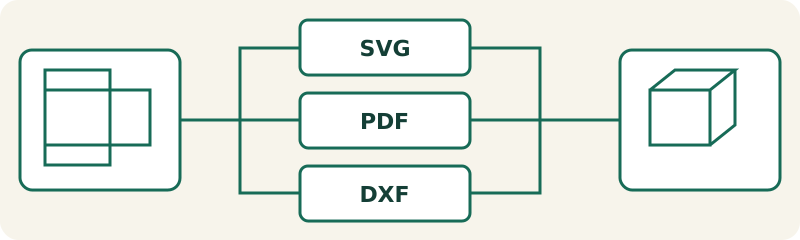
| Item | What to check |
|---|---|
| SVG | Vector editing and artwork layout |
| Sharing, review and full-size printing | |
| DXF | CAD and fabrication data exchange |
Worked examples and tool checks
Check in the tool — L=60, W=90, H=150, T=0.5 mm
Worked examples and tool checks
L × W × H = 60 × 90 × 150 mm; T = 0.5 mm. Die face: 61 × 91 × 150 mm. Outer: 61 × 91 × 151 mm.
Practical decisions and common mistakes
Ask the receiving designer or maker about their workflow before choosing an export. SVG may suit vector editing, PDF review and DXF CAD exchange, but no format automatically satisfies every machine. Supply the style, dimension definitions, millimetre units, caliper and revision with the file, and identify cut, crease and reference information.
Checks before handing off a file
A filename extension is not proof of correctness. After importing into another application, measure a known edge and inspect curves, dashes, layers and duplicate paths. Print PDF at actual size, confirm how the receiver interprets DXF units and retain the relationship between SVG width, height and viewBox. If native AI is required, save it in suitable software and recheck it rather than merely renaming the extension.
Export and sample checks
Open exported SVG, PDF or DXF in millimetres at 100% scale. Measure a known panel and inspect CUT/CREASE/BLEED separately. Cut an unprinted sample and check the product, inserts, tongues and lid before converter review. Diagrams explain the model; they do not include machine kerf, springback or supplier compensation.
Frequently asked questions
- Does SVG have no units?
- SVG can specify physical units such as millimetres in width and height, while viewBox defines its coordinate range. Still verify scale after import.
- Is AI-compatible SVG native AI?
- No. The export still contains SVG. Native AI requires saving from appropriate software and checking the requested version and dimensions.
- Is opening DXF enough to approve machining?
- No. Check units, layers, line styles, machine settings, duplicate paths and curve handling. A successful open is not technical approval.
- How do I check printed scale?
- Choose Actual size or 100%, disable Fit to page and measure a known edge. If the layout exceeds the printable area, use suitable paper or tiled printing.
- Do I need a blank sample before production?
- Use the intended material to check dimensions, folds, clearance and actual contents, then confirm processing with the maker. A screen preview cannot replace a physical test.
Export all three from the tuck page