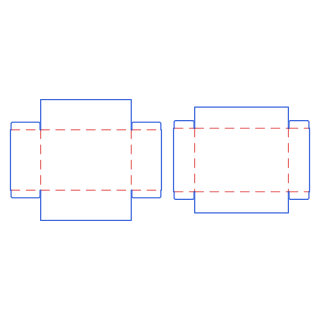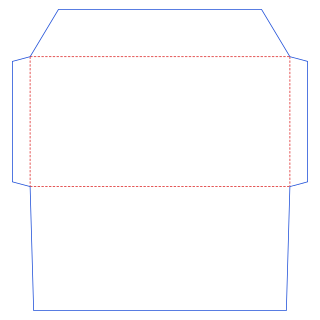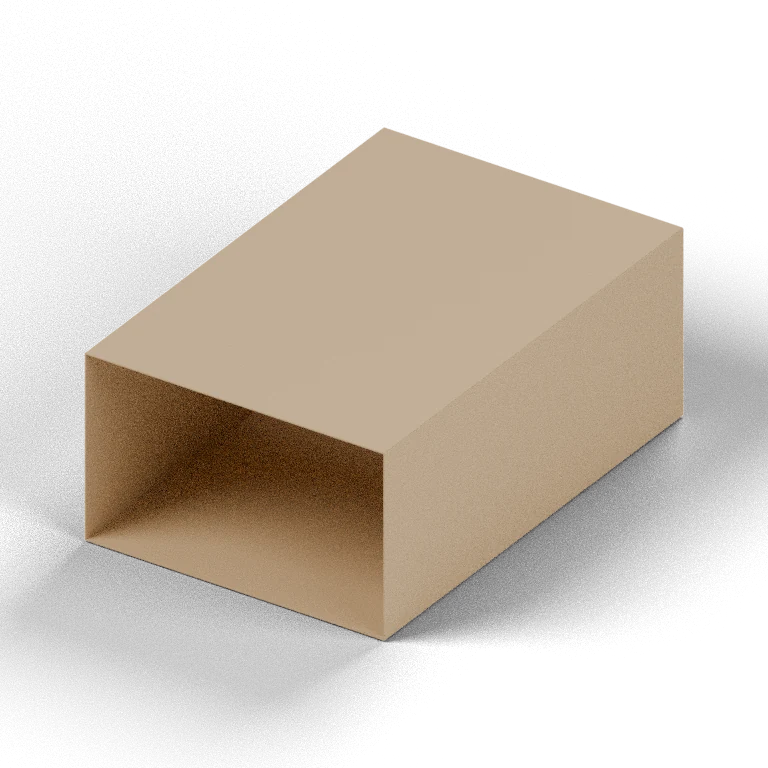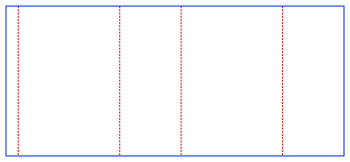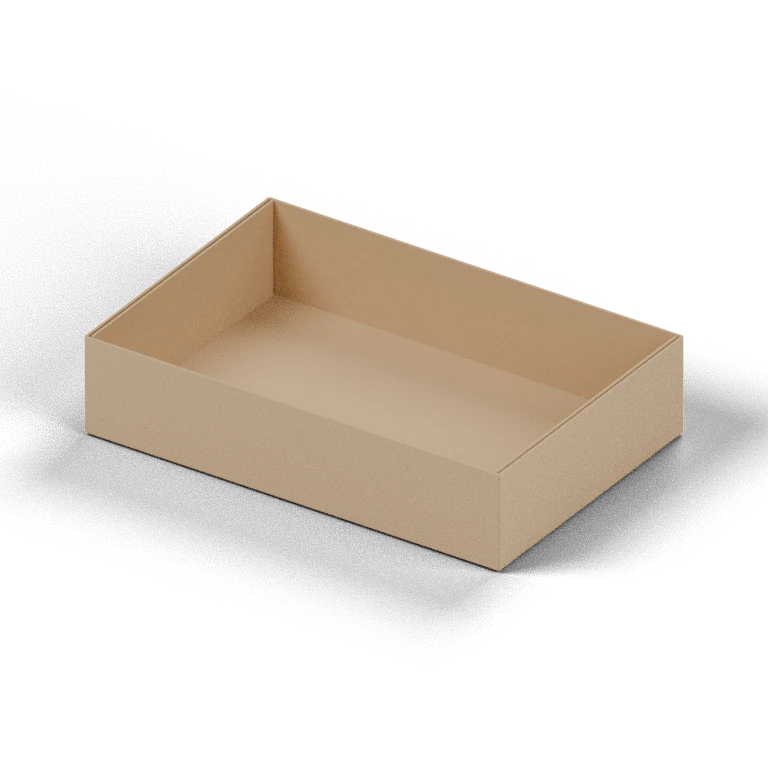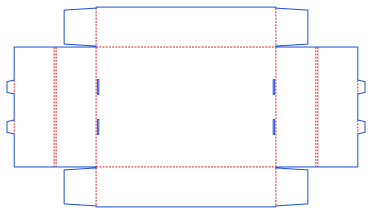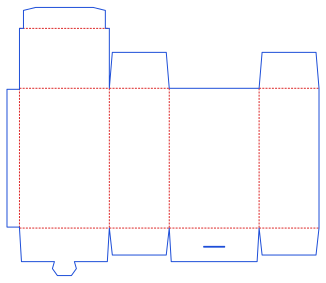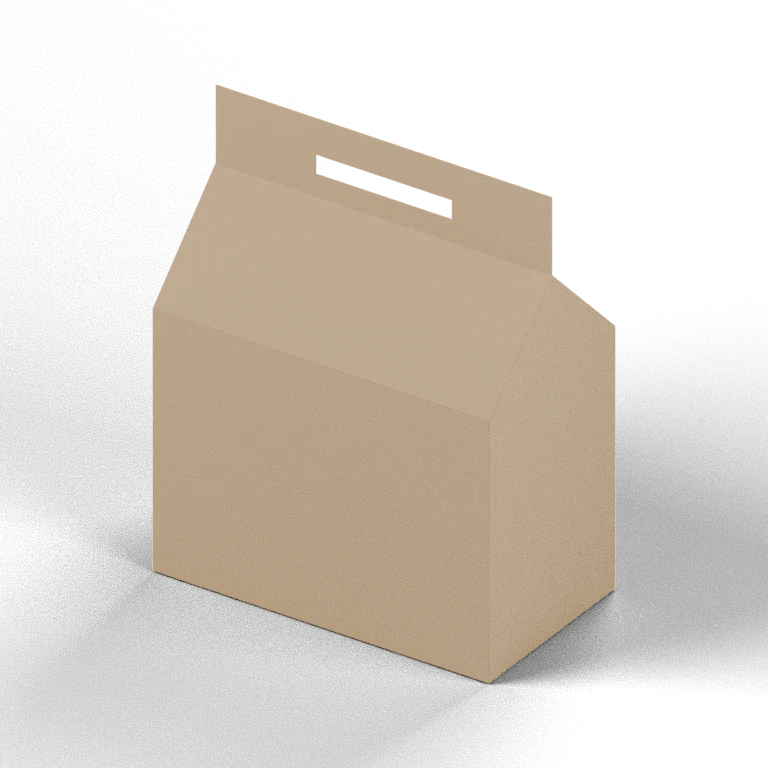
Set L×W×H and caliper, preview the die or a folding solid, export a die file
No matching dielines. Try a shorter keyword or another name, or clear the search to browse all styles.
The things worth knowing before you order.
A packaging dieline connects product dimensions, opening style, material thickness and assembly into one structural plan. MakePk is a free online dieline generator: choose a style, enter dimensions, inspect the flat layout and export vector files. This guide explains the decisions between measuring a product and preparing a physical sample, for independent brands, designers and anyone checking packaging sizes before production.
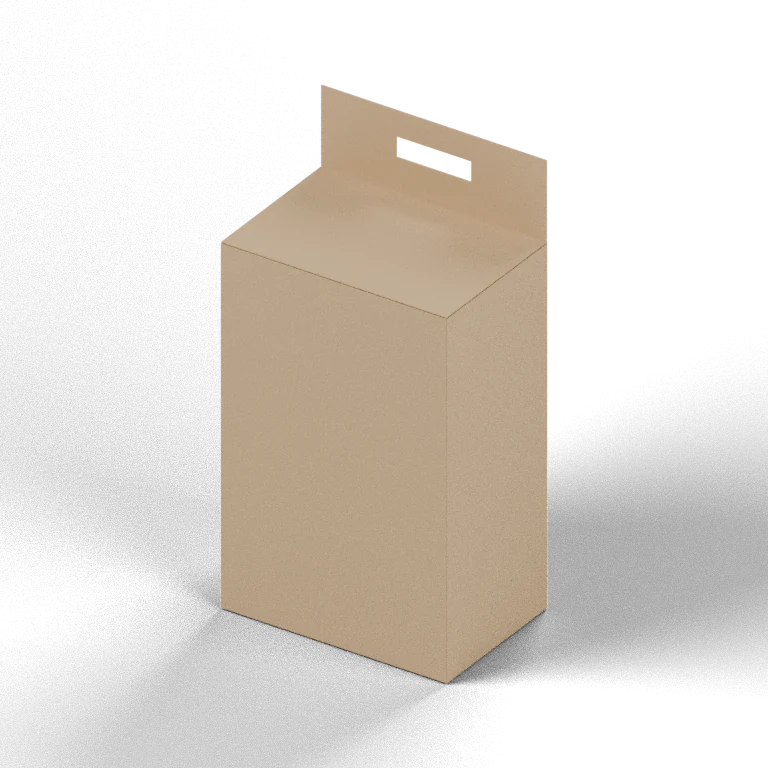
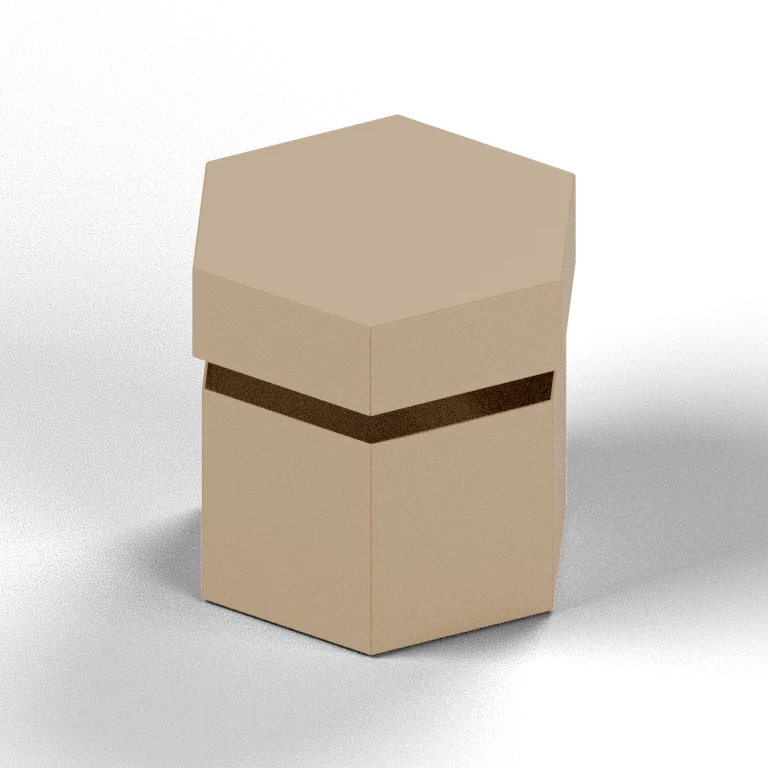
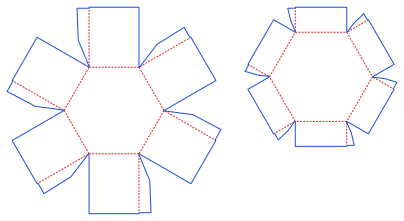
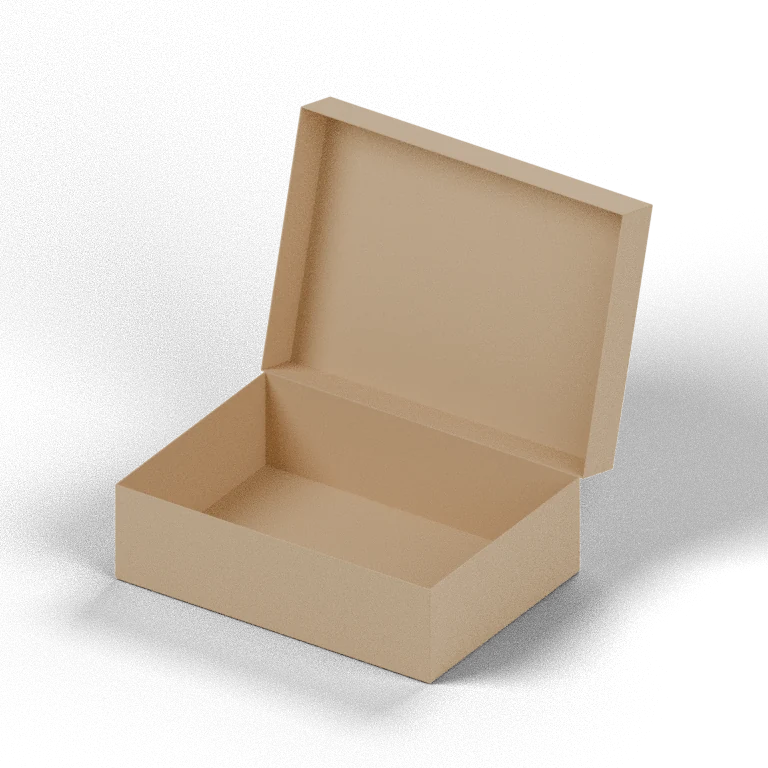
Start with what the packaging needs to do. For shipping, compare how a mailer or RSC carton closes, assembles and fits into any outer packaging. For small retail products, compare reverse-tuck, straight-tuck and hanging cartons. A lid-and-base or two-piece hexagonal box opens into separate pieces; a drawer box gives access through a sliding tray. The style name is a starting point: test the actual contents, weight and intended use.
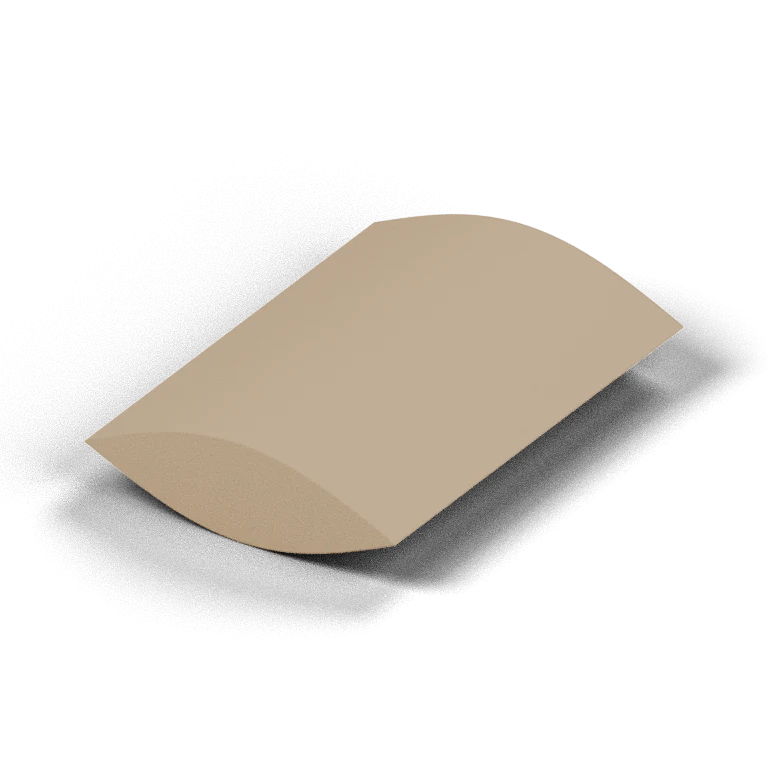
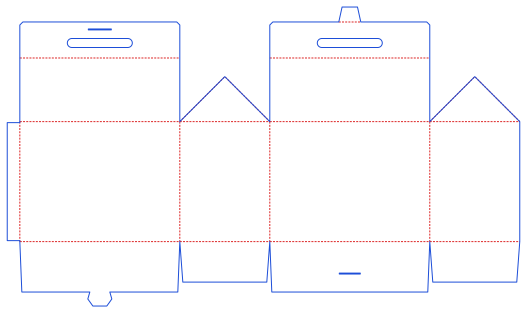
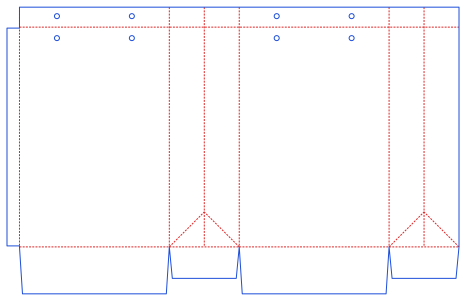
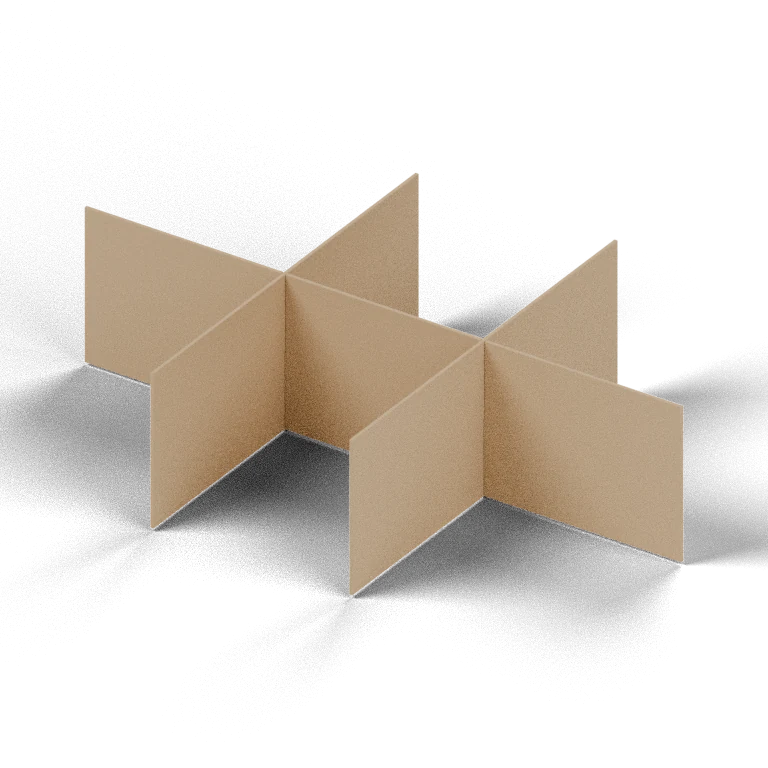
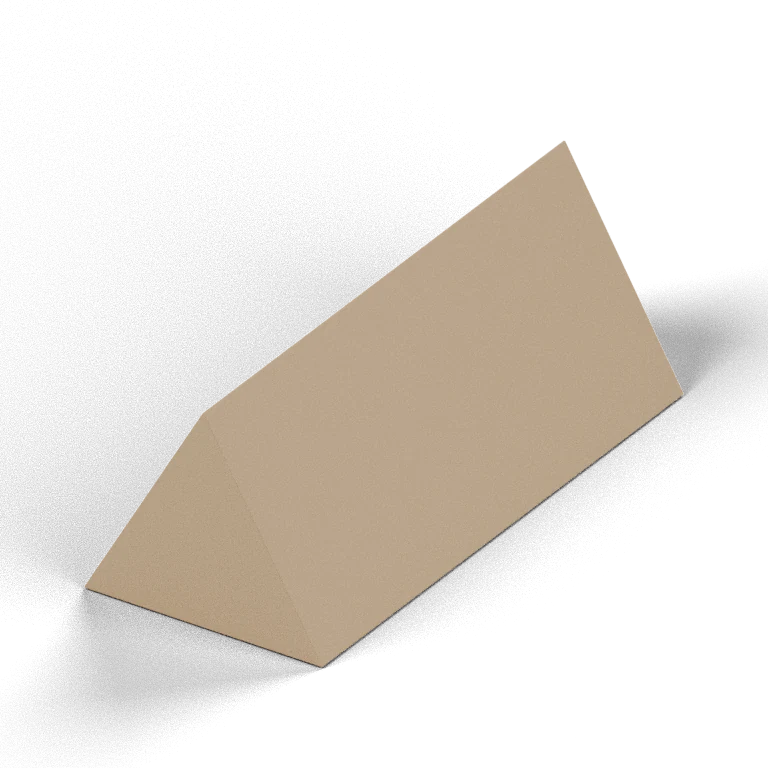
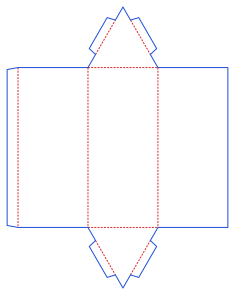
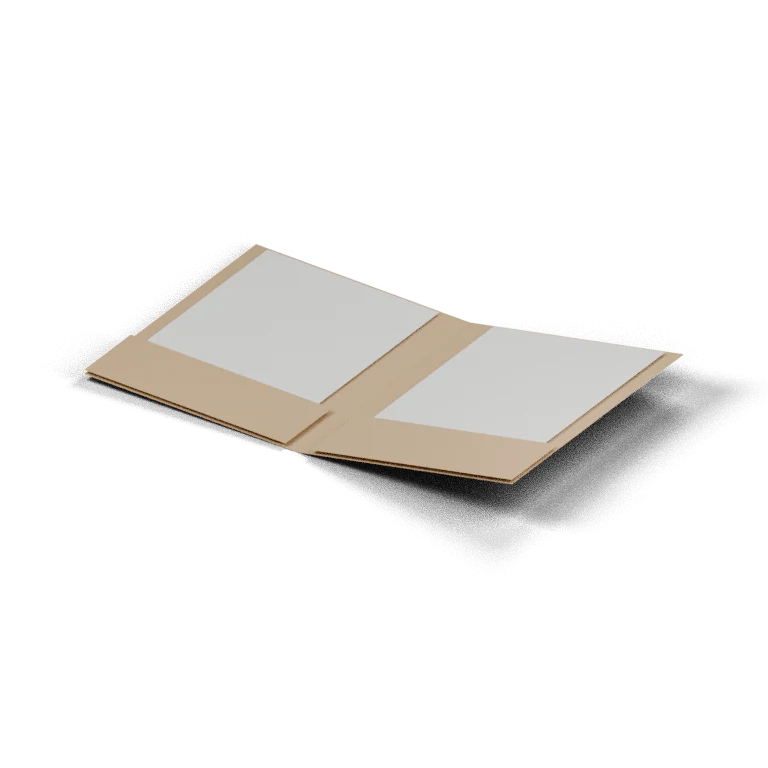
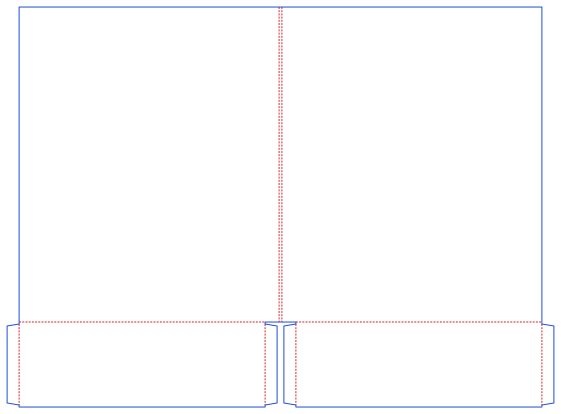
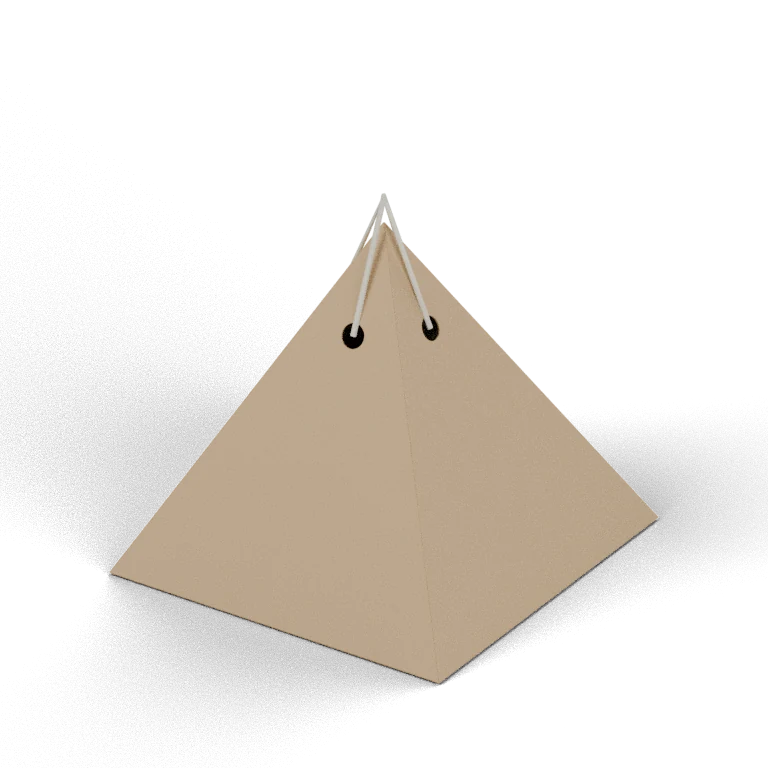
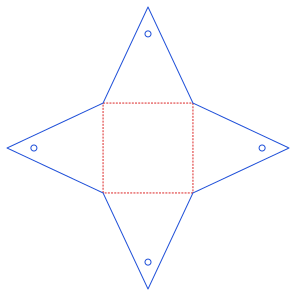
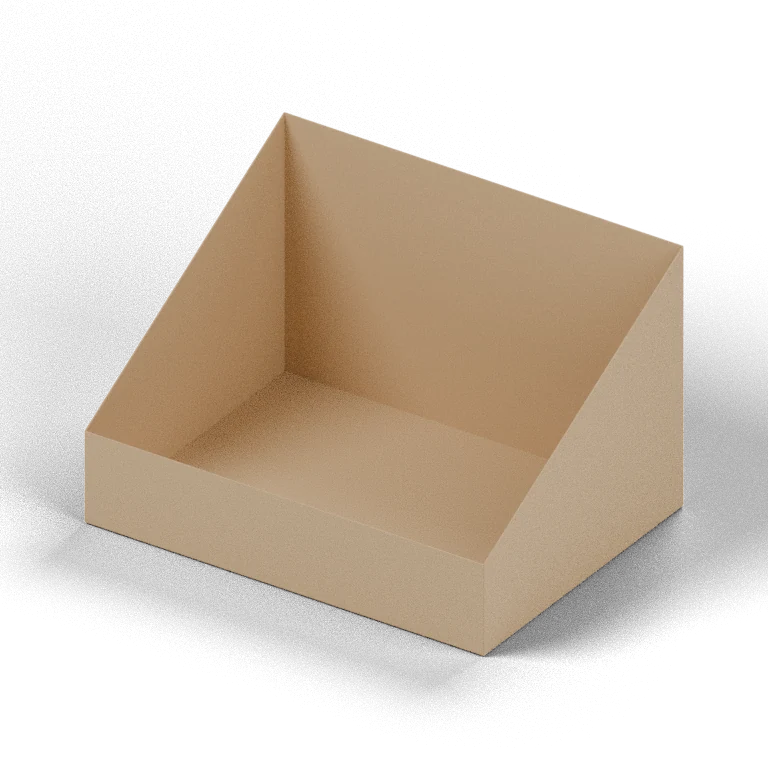
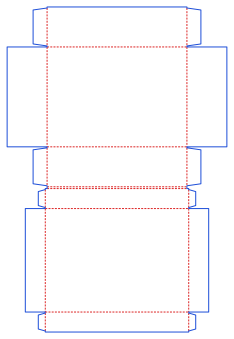
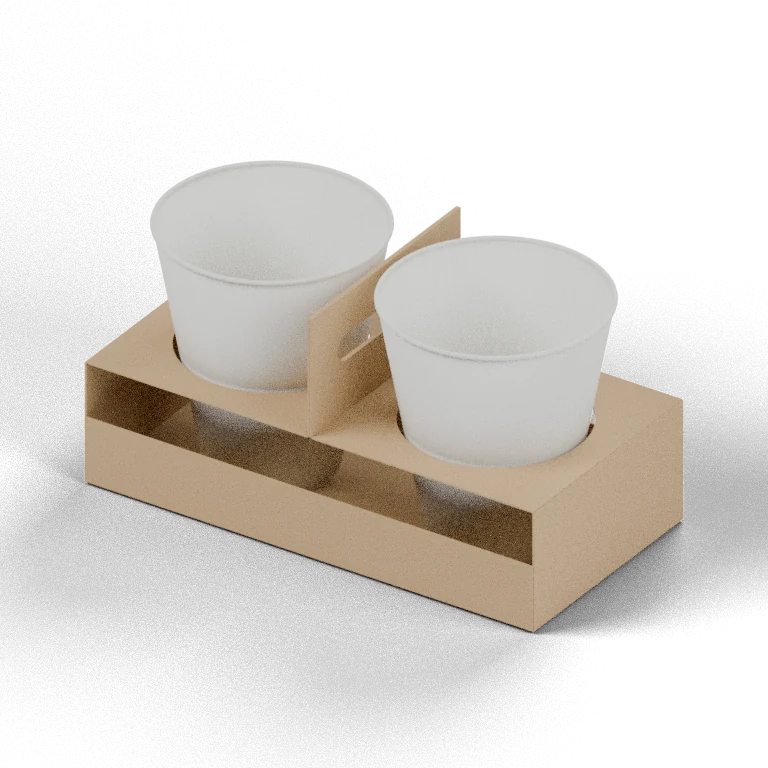
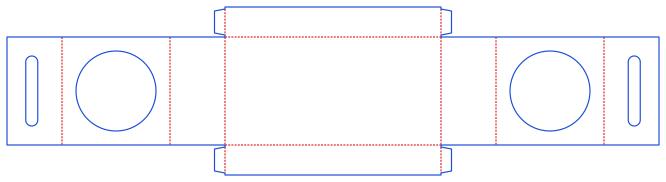
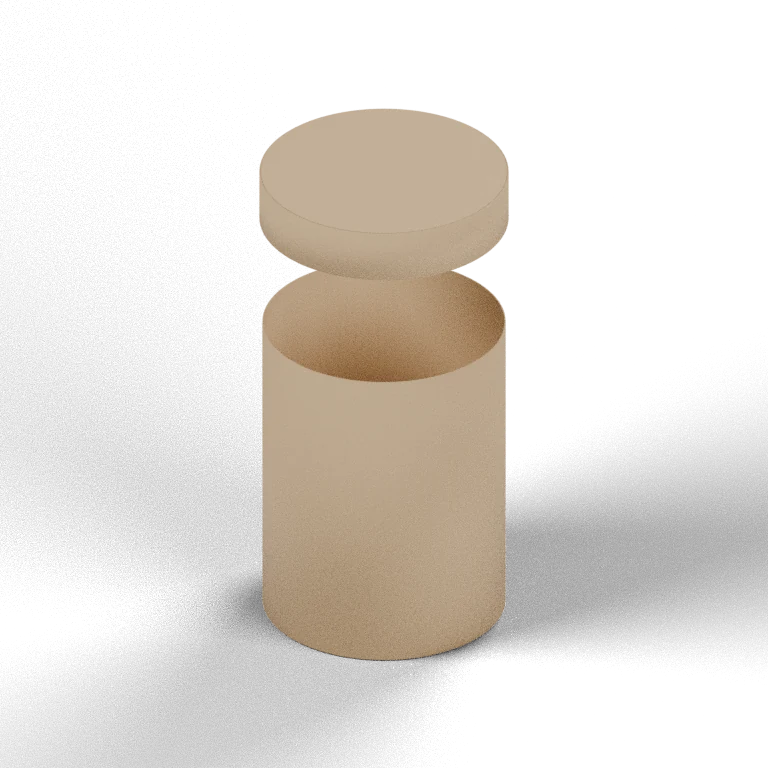
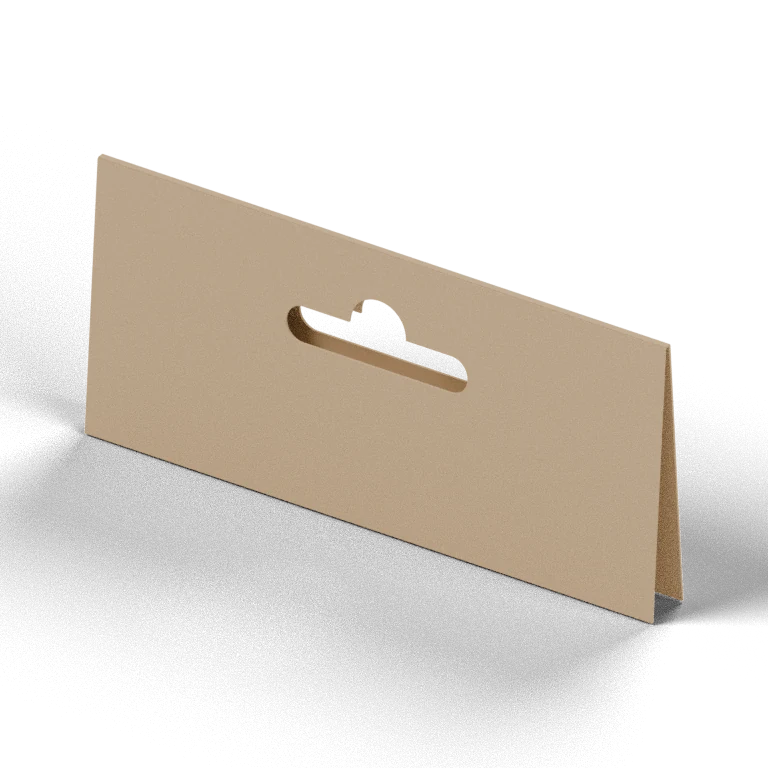
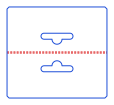
A sleeve wraps an existing box or product bundle, a tray supports and presents contents, and an envelope uses body and flap dimensions. Pillow boxes, gable boxes and paper bags introduce different shapes and assembly steps. Consider whether you need glue, cords, a hanging hole or a window. Options differ between tools, so read the structural notes on the relevant page and confirm suitability with a physical sample. Additional structures include a four-flap book wrap, six-cell slotted insert, triangular prism carton, two-pocket folder and ribbon-tie pyramid. Further structures include a sloped display box, clamshell, two-cup carrier, round tube lid-and-base box and folded hanging header card.
Measure the product together with its protective sleeve, insert and accessories. Inner dimensions describe usable space after assembly; die-face dimensions generally describe panels between fold lines; outer dimensions describe the assembled exterior. Material thickness and double-wall sections affect the relationship between them. Product measurements should not automatically be used as panel dimensions.
A product measuring 150 × 100 × 50 mm provides a starting point, not a finished box specification. An insert can change the space required, and the shipping carton needs its own size check. Follow each tool’s L, W and H directions: length, width and depth do not mean the same panel in every style. The size converter follows the mailer’s double-wall model rather than a universal formula; envelopes and hexagonal boxes use their own parameters.
Caliper is physical material thickness, not paper weight. Two materials with the same gsm can have different thicknesses because of their fibres, coating or corrugated construction. Obtain supplier data or measure the actual sample before entering T within the tool’s supported range. Grain direction, stiffness and creasing also affect assembly, so thickness alone cannot predict every folding result.
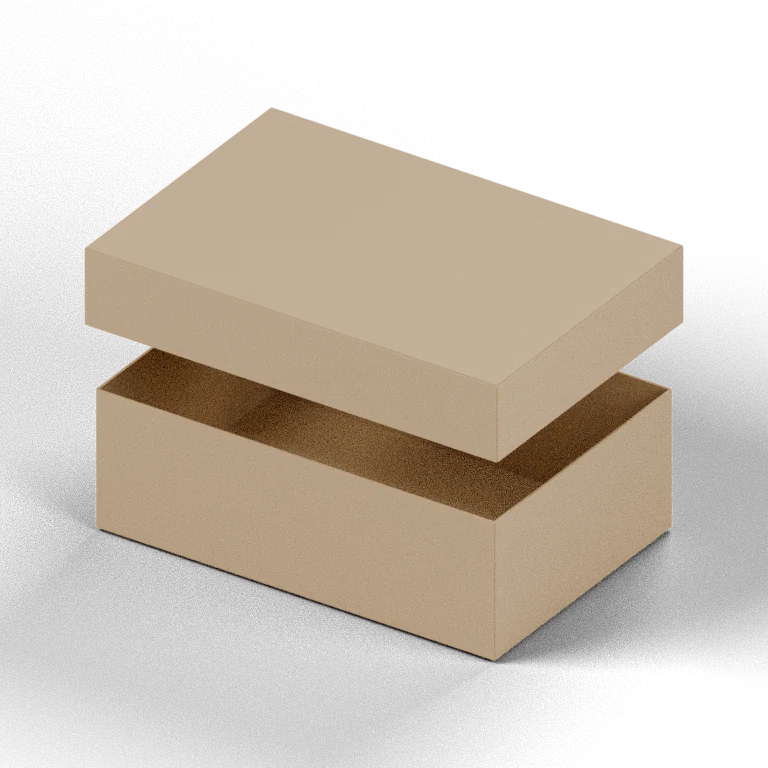
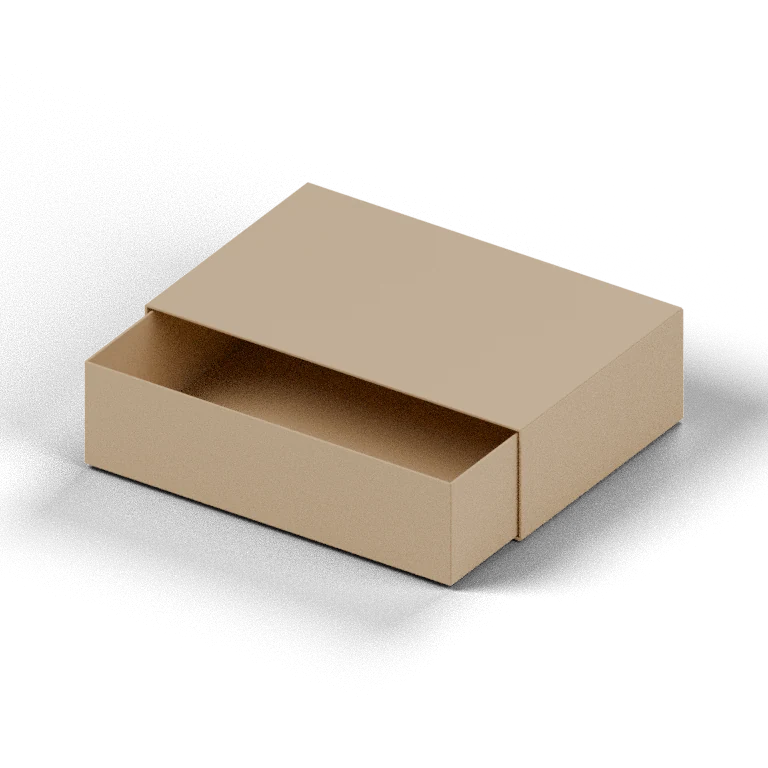
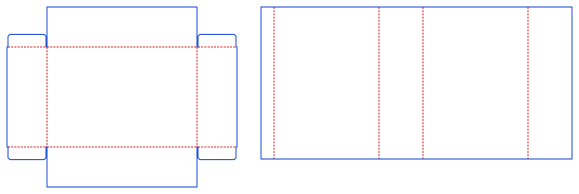
Drawer sleeves and trays, separate lids and bases, and two-piece hexagonal boxes need an appropriate fit. Too little clearance can make assembly difficult or scuff the surface; too much can weaken positioning. Test clearance together with glue, lamination and cutting variation. Defaults help you begin comparing structures; final values should come from samples made with the intended material.
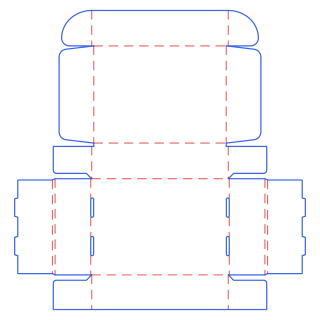
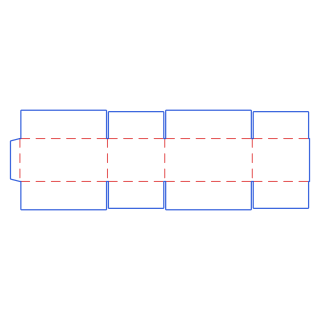
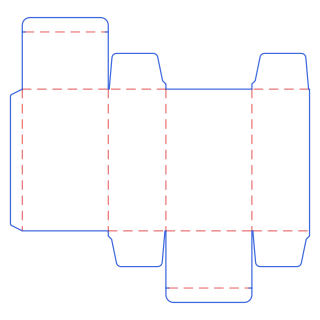
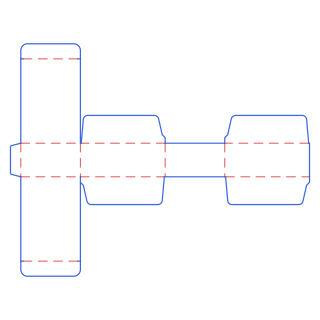
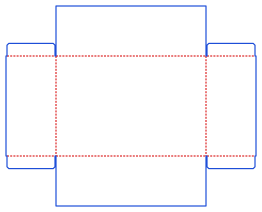
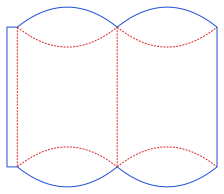
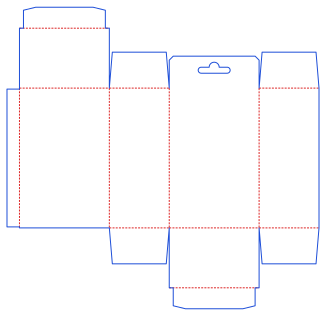
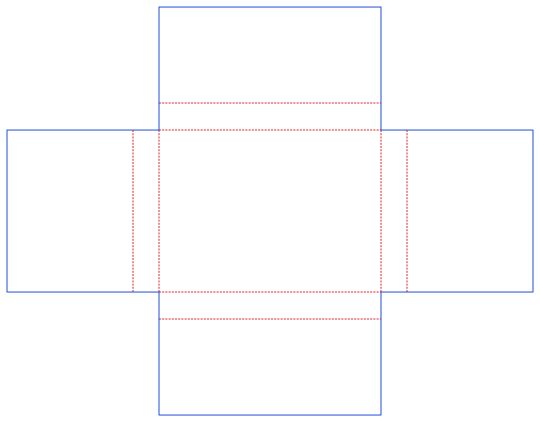
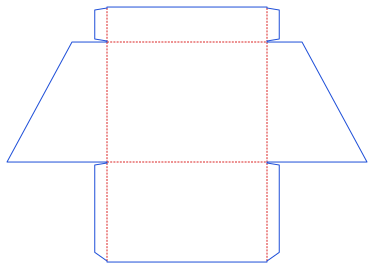
Cut lines mark the edges to cut, crease lines show folds, and bleed extends printed artwork beyond the trim boundary. MakePk distinguishes structural information by colour and line style. Use the page legend rather than treating a colour as a universal standard. Hanging holes, windows and locking slots also need checking against the contents, glue areas and nearby folds.
The generator focuses on structure. It does not automatically create your branding, typography or every specification required by a printer. In a vector editor, keep technical lines separate from printable artwork and follow your supplier’s requirements for bleed, text safety and technical-line output. Preview legends and dimension notes should not accidentally become part of the printed packaging.
SVG suits further vector editing and artwork layout. PDF is useful for sharing, reviewing and printing a full-size paper sample. DXF provides an exchange format for CAD or fabrication workflows. Ask the receiving party about formats, units and layer names before delivery. Applications may interpret curves, line styles and file versions differently; opening a file successfully does not confirm its machine settings.
After import, measure a known edge to confirm millimetres and the expected scale. For PDF printing, choose Actual size or 100% rather than Fit to page. Some tools also offer an SVG labelled for AI use: its content is SVG, not a native Illustrator AI document. If a particular native version is required, save from suitable software and check the dimensions again.
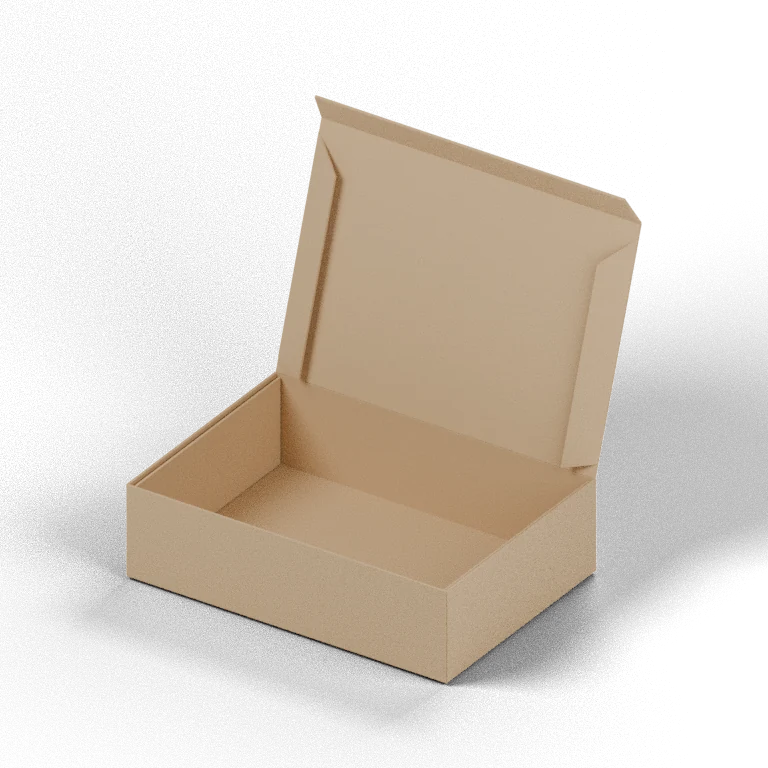
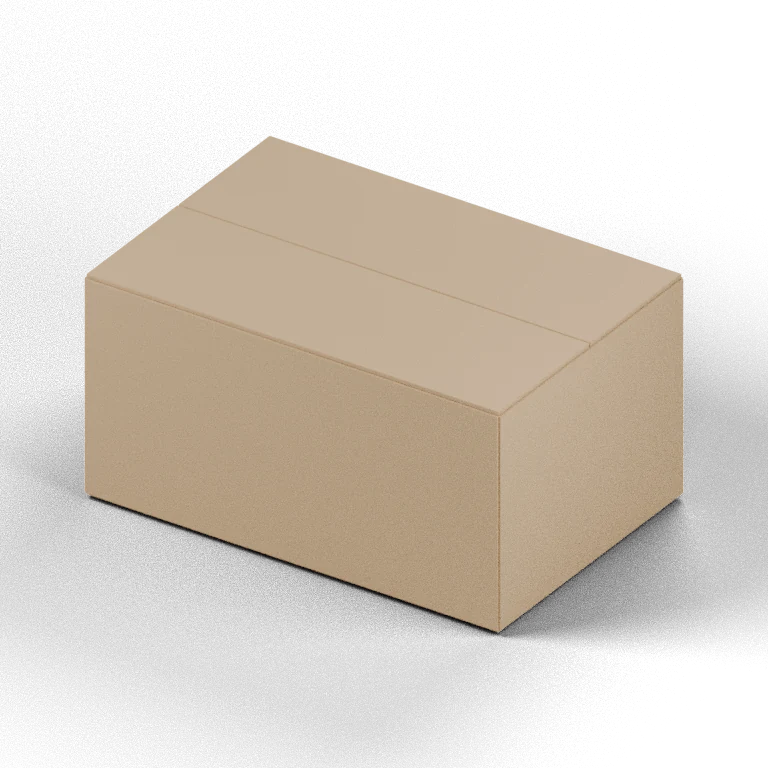
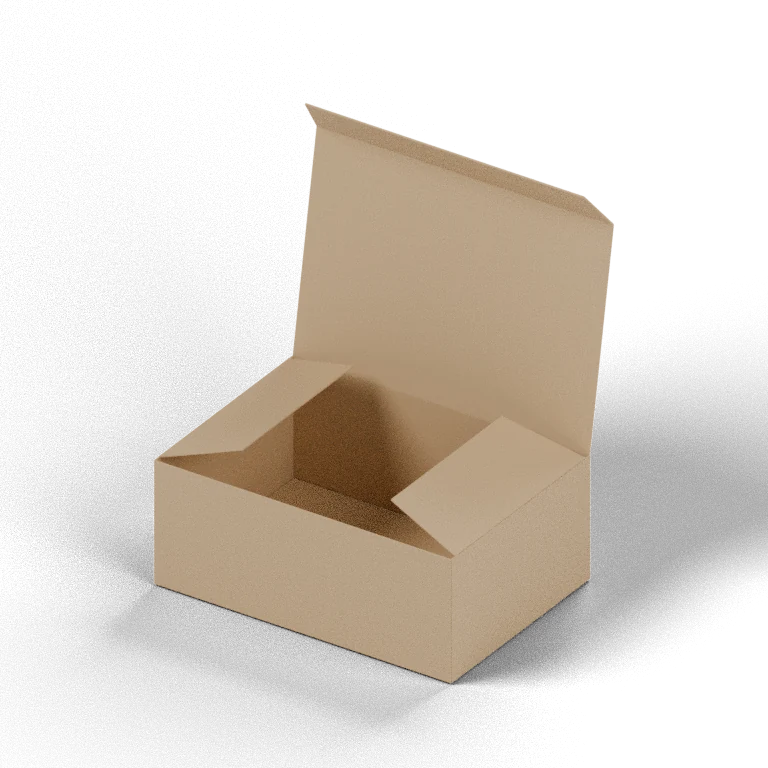
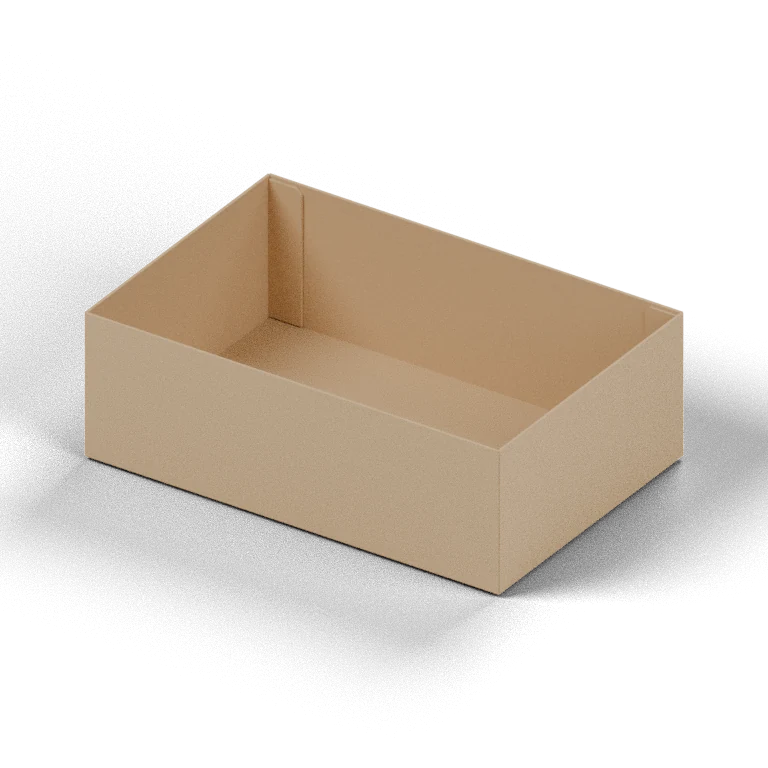
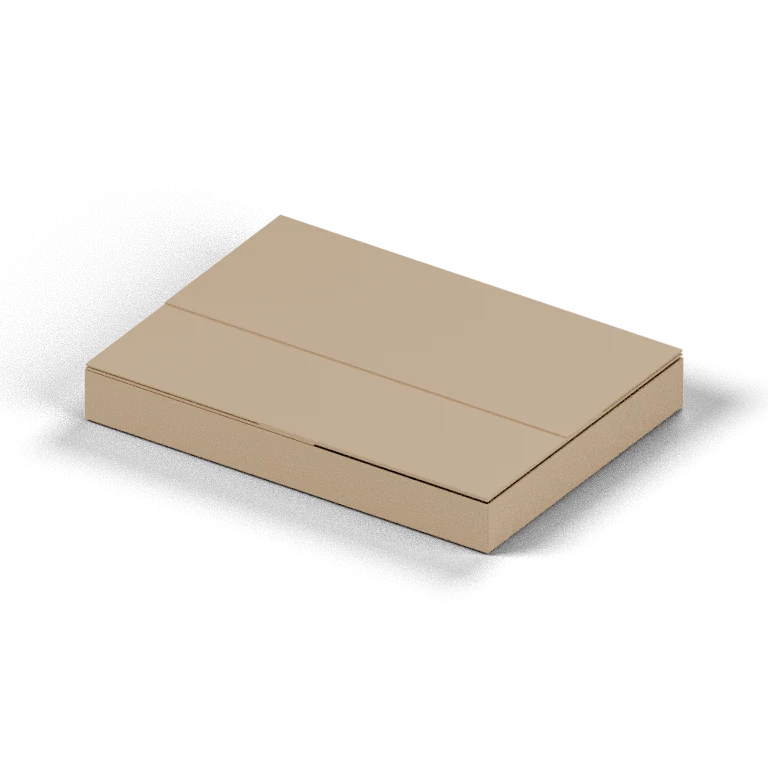
Use the flat dieline to inspect panels, folds, glue tabs, holes and overall sheet dimensions. It is the primary structural reference. Homepage 3D product images help identify a style quickly, but are fixed illustrations and do not rebuild for every set of custom dimensions. Compare the overall form first, then open the tool to inspect the layout and parameters.
Mailer, reverse-tuck and straight-tuck tools currently provide interactive folding; the other tools primarily provide flat dielines. Folding previews help explain panel connections and rotation. They do not replace tests of paper bending, adhesive bonds, friction or load. Even if a preview appears to close correctly, check the feel of the actual material and the fit with the product inside.
For separate trays, sleeves, lids or bases, identify each part before printing so nothing is duplicated or omitted. The volume calculator can help compare size proposals, but geometric volume does not establish whether an irregular product fits. Save the parameters and file version used for each sample to make later revisions easier to compare.